New Workflows Unlocked
Vizcom's major update includes Enhance, updated Palettes, Color Match, Color Transfer, Magic Erase, Remove Background, Layer Groups, and Sections. These features unlock new workflows including in-context rendering, tech pack visualization, presentation-ready visuals, and better organization.

We’re excited to share a big update with you that improves how you are able to visualize and organize your ideas in Vizcom. Some of the features included in this release are.
- Enhance 🪄: Add clarity to the materials and details in your renderings.
- Palettes 🎨: New and updated palettes.
- Color Match 📌: Control if Vizcom stays true to the colors of your sketch.
- Color transfer 🌈: Change the color of a selected area via color picker
- Magic erase✏️: Quickly remove blemishes and parts of your generations.
- Remove background 🖼️: Isolate your idea from the environment
- Layer Groups: 📂 Group generations, and organize your files.
- Sections 🗂️: Organize your ideas on the canvas and group your explorations.
Together, these features unlock a variety of new workflows that can accelerate how you work and push the limits of what you can create in Vizcom. We’d like to highlight a few of these workflows.
In Context Rendering
Starting with a sketch, then render, then 3d, you can quickly compose your 3d model while adding environment details with the new realistic product model. This allows you to compose the perfect image of your idea that began as a sketch.
Tech Pack Visualization
Using the new color match feature for apparel, footwear, and any other line drawings, Vizcom can stay true to your colors, and just add fidelity and detail to them. This combined with enhance allows you to produce renders of your tech packs with more realism and detail the the materials.
Presentation Ready Visuals
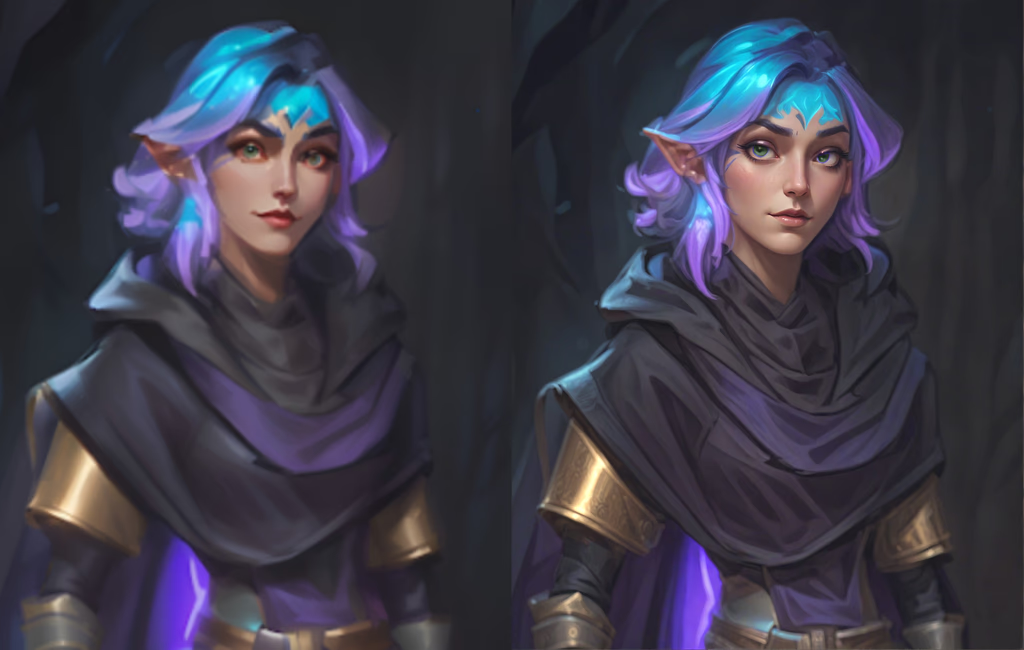
Enhancing renderings can add that final touch that sells your ideas. We've found that material quality can be significantly improved with this feature. Plus, it allows you to zoom in on specific areas of your rendering to showcase the intricacies of your concept. Any blemishes you may notice can quickly be resolved with the magic erase tool.
Focused & Organized Concepts
Remove background lets you isolate your ideas from distracting elements, ensuring your concept stands out. Separately, layer groups and sections in our 2D studio and workbench help you organize your files with ease. Used together, these features empower you to organize your ideas and present them directly from Vizcom.
We’re excited for you to integrate these new features into your design workflow. Our mission is to build tools that not only speed up your process but also amplify the way you communicate your ideas. Stay tuned—there’s more to come, and we can’t wait to share the next chapter of our journey with you.
Explore
Explore more blog posts & resources to get inspired
.webp)
Hatch Duo is a design studio based in San Jose built around a simple premise: great products hatch when two forces meet, your insight and their execution. Hatch's focus sits squarely in consumer packaged goods. For their latest collaboration with Vizcom, industrial designer Alec Comido wanted to see what he could design in one hour.
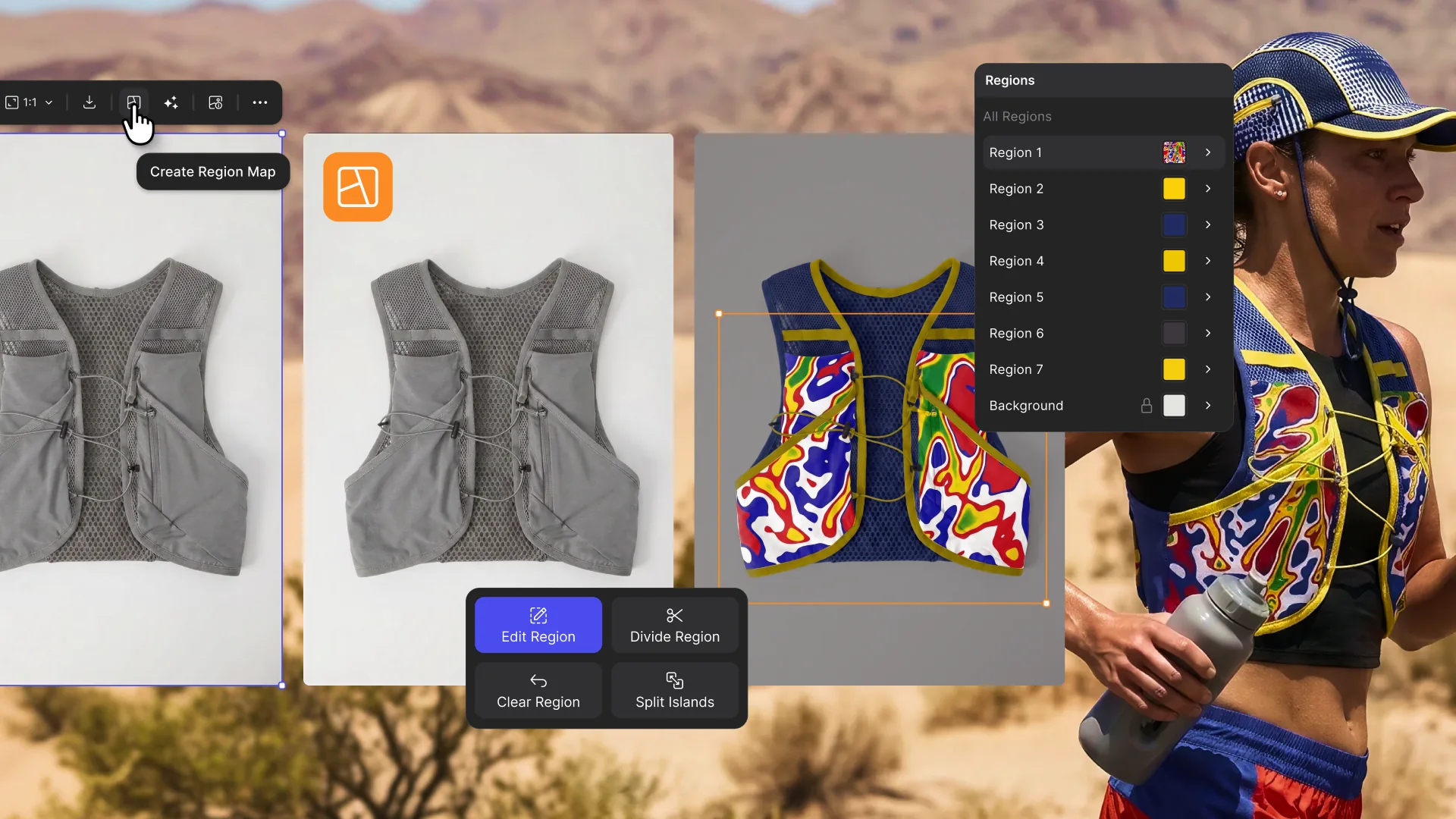
Explore color and material variations part-by-part without leaving Vizcom.


Frequently asked questions
Yes of course! Our starter plan is completely free, no credit card required. This is a great plan to explore vizcom with.
We accept all major credit and debit cards.
Admins (paid) – can edit files, manage workspace settings, billing, teams, and invite members. Editors (paid) – can edit files but not manage settings, billing, or teams. Viewers (free) – can only view files in read-only mode.
Team billing is handled centrally by the Admin. All paid seats, whether Admins or Editors, are included in a single invoice under the same billing cycle, while Viewers remain free and do not affect the cost.
Yes, you can. An Admin can update the plan in the billing settings, and the switch will take effect on the next billing cycle at the annual rate.
Yes, you own everything you create in Vizcom. For free users, while Vizcom may use generated images to improve its services, it does not claim ownership of your designs, concepts, or original ideas—you keep full rights to them. For paid users, your images and designs remain entirely private and are only used to deliver the service. Every design, concept, and image you create or upload is fully yours and kept confidential.
Vizcom does not use your data to train AI models if you’re on a paid plan. Everything you create stays private and is only used to provide the service. Free users may have their generated images included to help improve Vizcom’s services, but even then, Vizcom does not claim ownership of your designs, concepts, or original ideas—you retain full rights.