Modify Pro Mode: Sharper Edits, Stronger Stories
Modify Pro mode lets you design the way you think—using sketches, references, and redlines instead of rigid prompts. With higher-fidelity results and precise, designer-native controls, it makes refining ideas feel more like marking up a printout than operating an AI tool.

Design the Way You Think, Not the Way AI Prompts Want
We naturally don’t think in model names or parameters.
We think in sketches, references, redlines, and quick directions across a studio:
“This sketch, but with that material.”
“Move the light here.”
“Drop it into an outdoor scene at sunset.”
Modify already gives you a more visual way to explore ideas.
With Modify Pro mode, we’re taking that language even more seriously.
Pro mode combines a new, higher-fidelity image engine with controls that feel native to designers: multi-image steering, sketch mark-up, and precise natural-language edits that only touch what you select.
Same Modify block.
New ways to say what you mean.
What’s new in Modify Pro mode
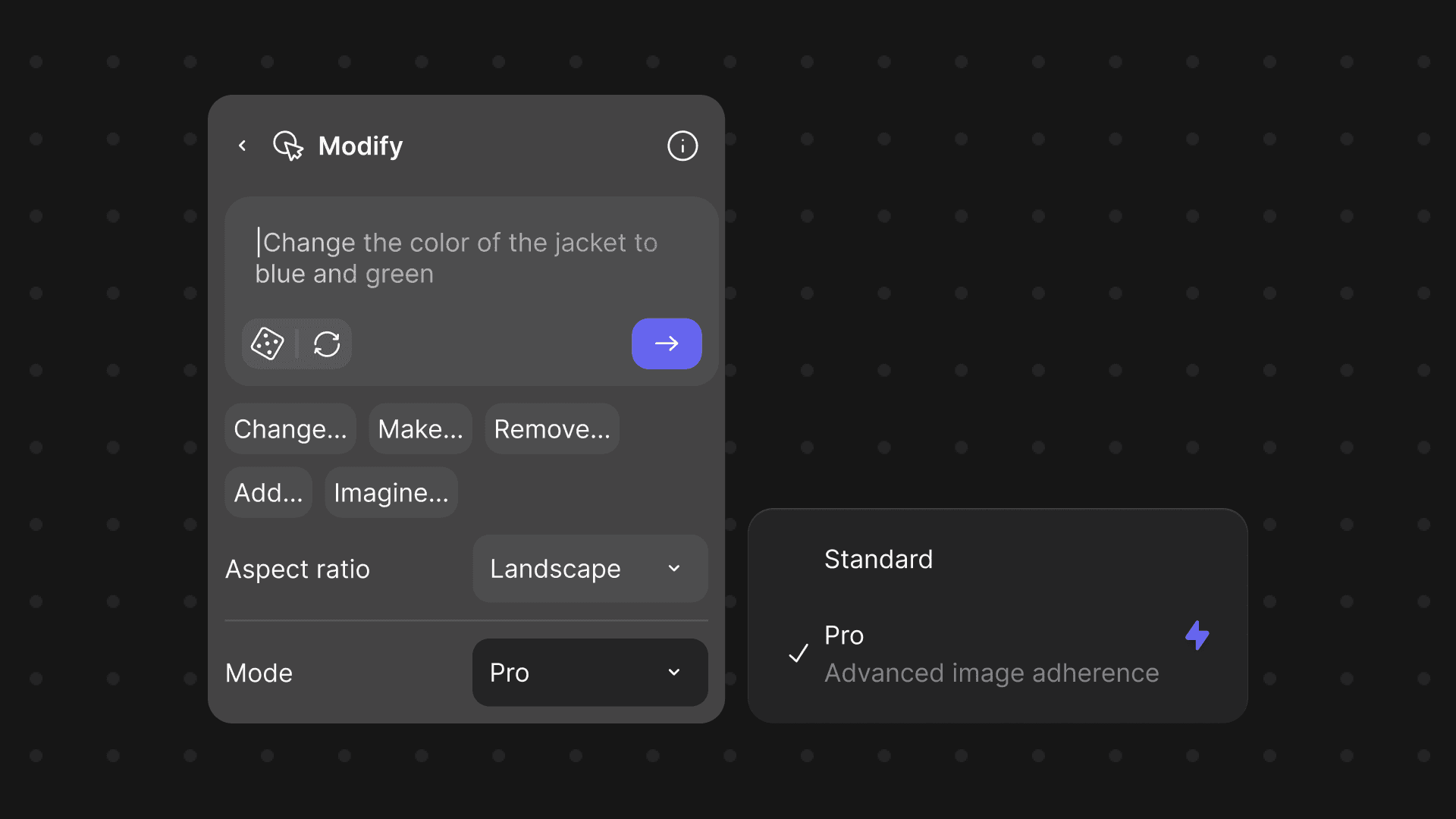
Modify now has two modes:
- Standard – Fast, playful exploration (what you’re used to today)
- Pro – Advanced image adherence for more precise, production-ready results
Switching modes is as simple as choosing Standard or Pro from the Mode dropdown in the Modify block.
Why it matters for your workflow
Modify Pro mode is built for the moments when you’re getting closer to a decision:
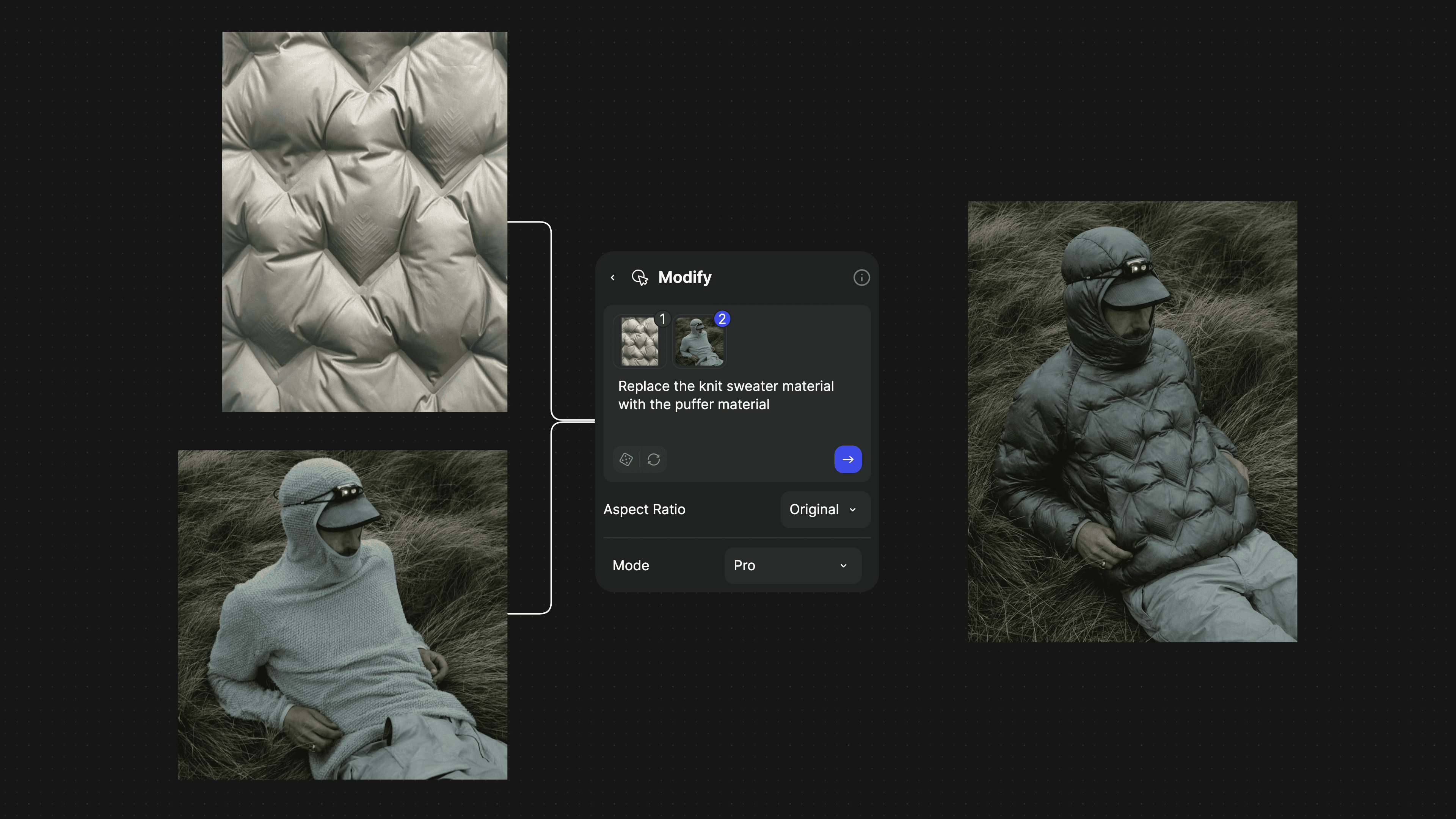
Change just the part you care about
Swap materials, colors, or details without rebuilding the whole shot. Tell Modify Pro to “replace the knit sweater with this puffer material,” and it updates just that area while keeping the pose, lighting, and environment exactly the same.

Cleaner, more believable scenes
Sketch a red circle on the environment to mark the spot, pair it with your vehicle render, and Modify Pro blends them together placing the car naturally into the scene without any 3D setup.
Annotate and redline like you would on paper
Circle what you want to change, draw arrows where things should go, and let Modify Pro turn your redlines into a clean, updated render. Sketch quick notes on top of the image and Vizcom handles swapping products, fixing details, and removing what you’ve crossed out. It’s the same way you’d mark up a printout on your desk, just with instant response.

See what's inside
Modify Pro takes a plain product photo and turns it into an exploded view that suggests how the internals might come together.
How to get access
Modify Pro mode is available for:
- Vizcom Pro workspaces
- Vizcom Enterprise workspaces
Free and Starter plans will continue to use Standard mode in Modify.
If you’re already on Pro or Enterprise, you’ll see the Mode dropdown inside the Modify block. Just switch to Pro when you want that extra level of control and fidelity.
Tools that speak studio language
The closer a tool feels to a person you can talk to in the studio, the better it becomes.
The tools are finally starting to understand that language.
With Modify Pro mode, developing an idea starts to feel less like operating a foreign AI tool and more like sculpting clay. Direct, responsive, and grounded in your own hand.
Try Modify Pro mode in Vizcom →
Explore
Explore more blog posts & resources to get inspired
.webp)
How Berlin-based designer Julius transformed a metal exhaust pipe into a bespoke tealight holder—and used Vizcom to sharpen the vision before building it.
.webp)

Frequently asked questions
Lorem ipsum dolor sit amet, consectetur adipiscing elit sed do eiusmod tempor incididunt ut labore.
Yes of course! Our starter plan is completely free, no credit card required. This is a great plan to explore vizcom with.
We accept all major credit and debit cards.
Admins (paid) – can edit files, manage workspace settings, billing, teams, and invite members. Editors (paid) – can edit files but not manage settings, billing, or teams. Viewers (free) – can only view files in read-only mode.
Team billing is handled centrally by the Admin. All paid seats, whether Admins or Editors, are included in a single invoice under the same billing cycle, while Viewers remain free and do not affect the cost.
Yes, you can. An Admin can update the plan in the billing settings, and the switch will take effect on the next billing cycle at the annual rate.
Yes, you own everything you create in Vizcom. For free users, while Vizcom may use generated images to improve its services, it does not claim ownership of your designs, concepts, or original ideas—you keep full rights to them. For paid users, your images and designs remain entirely private and are only used to deliver the service. Every design, concept, and image you create or upload is fully yours and kept confidential.
Vizcom does not use your data to train AI models if you’re on a paid plan. Everything you create stays private and is only used to provide the service. Free users may have their generated images included to help improve Vizcom’s services, but even then, Vizcom does not claim ownership of your designs, concepts, or original ideas—you retain full rights.