Ideas in Motion: Animate in Vizcom
Vizcom's new Animate feature adds motion to design storytelling, allowing designers to show how concepts move, interact, or unfold directly from the canvas. From turntable rotations to interaction demonstrations, animation helps communicate design intent more clearly than static renders.

As designers, we are storytellers. We tell stories about new ideas, how they’re used, who they’re for, and why they matter. We sketch, prototype, and render not just to visualize form, but to communicate intent.
With Animate, Vizcom adds motion to that storytelling toolkit. It’s a simple way to show how your concept moves, interacts, or unfolds directly from the canvas. Whether it’s a product turning, a user entering frame, or a character shifting expression, motion gives your story another layer of clarity.
Using Animate in Vizcom
The Animate feature can be accessed from the insert panel in Workbench. Drag in an Animate block and connect it to a generation or scene you want to bring to life. From there, all it takes is a prompt.
Prompting for animation works a little differently than prompting for still images. Vizcom already understands your starting image, so instead of describing details about colors and textures, focus on how things move. What is the object doing? How should the camera react? Are there people entering the frame or interacting with your design.
Animation prompt: Boat, sleek white hull, sparkling blue ocean, sunlit sky, gentle waves lapping, boat rocking slightly. camera moving in waves
What kind of stories can you tell?
Designers are already using Animate to explore motion, context, and interaction early in the process, when ideas are still forming. Here are a few workflows and prompts you can try with your concepts.
Turntable rotation
Show every angle of your design by rotating it in place, like a product reveal or studio shot.
Animation prompt: Turntable rotation of chair design, 360 degree smooth motion orbit.
Interaction in context
Add a hand reaching into frame to pick up a tool, or a user sitting in a chair, simple ways to ground your design in real use.
Animation prompt: Power drill, cordless design, metallic finish, robust grip, light reflections shifting. single hand entering the frame from the left gripping drill and pulling trigger, lifting drill up out of frame with smooth motion.
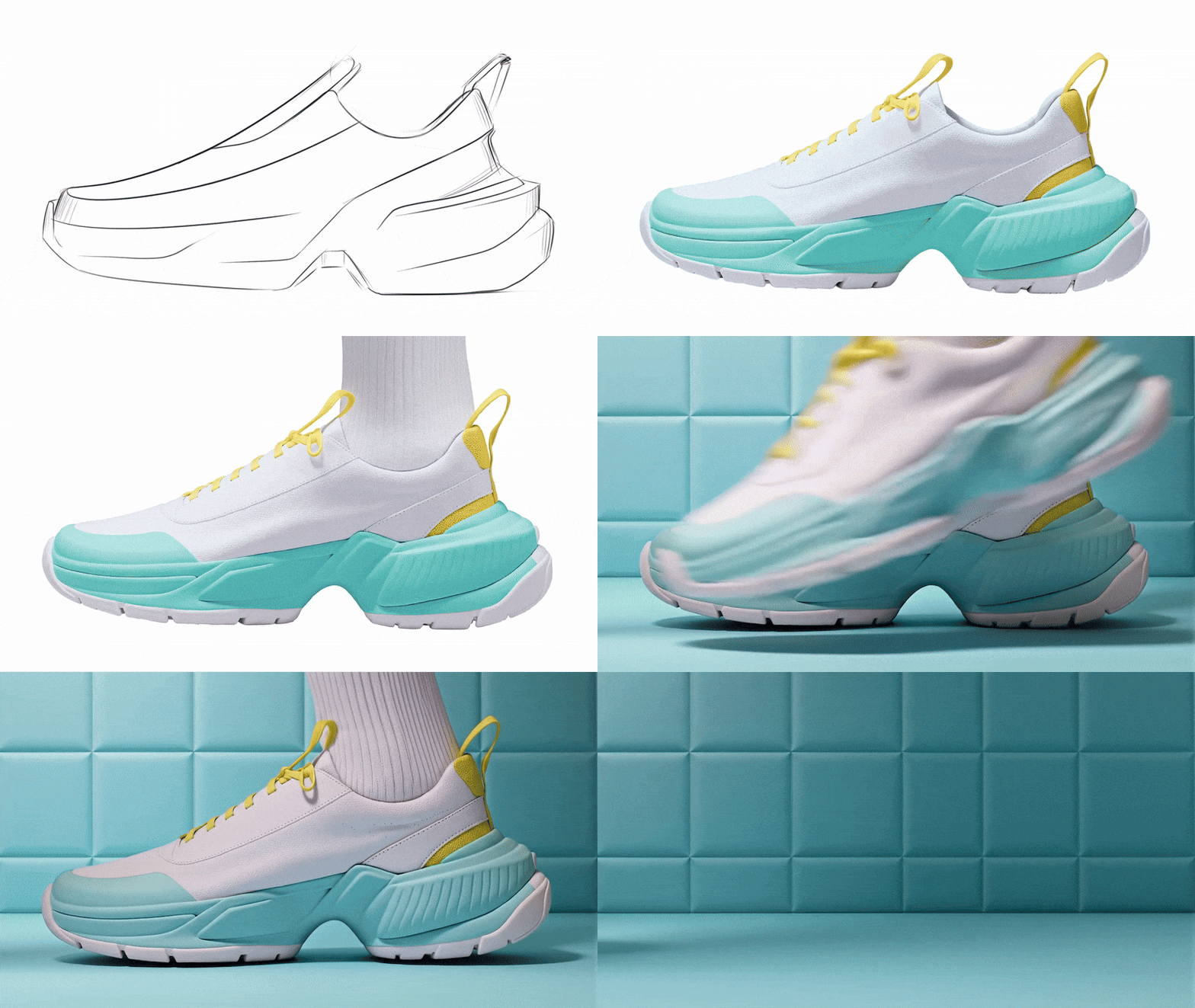
Sketch, render, environment reference, animate. Animate prompt: Pastel chunky sneaker design, person wearing shoe, white sock, person taking step forward out of frame, slight zoom out.
Animation prompt: People walking into frame and sitting in chairs
Facial expressions and body language
For concept art and character exploration, Animate helps visualize subtle emotion or posture shifts that bring a persona to life.
Animation Prompts from top left to bottom right: 1-Elf touching forehead, sighing deeply, frustrated but composed emotion. 2-Elf crossing arms, slight smirk, raised eyebrow, skeptical expression. 3-Elf raising hands to cheeks in surprised emotion. 4-Elf with angry facial expression screaming at person.
Camera reveals
Slowly pan across a scene to uncover details, focus attention, or add a cinematic layer to your concept presentation
Animation Prompt: Castle, perched on rocky cliffs, ancient stone walls, towering turrets, drone shot zoom out to show adventurer back standing on mountain looking at castle, camera focus shift to person, blurs out background, illustrative style
Apparel Try On
Animate a model trying on apparel, turning in frame, or walking through space to bring fashion and product visuals to life.
Sketch, render, remove background, try on, animate. Animate prompt: Guy turns around, puts on the hood of the jacket and walks away from the camera.
Access & Availability
Since Animate is still in beta, each plan includes a limited number of animation credits per month. This helps us ensure quality and performance as we continue to improve the feature. We’re actively working on ways to expand access and introduce options for purchasing additional credits soon.
Animation in the Enterprise plan includes enhanced privacy and security, which may introduce slight variations in behavior compared to other plans.
Your ideas in motion
With Animate, you can now express your ideas in motion adding interaction, behavior, and emotion to your concepts in seconds. It’s not about creating a final video. It’s about communicating the essence of your idea, early and clearly.
We’re excited to see what you bring to life and Animate in Vizcom.
Explore
Explore more blog posts & resources to get inspired
.webp)
Hatch Duo is a design studio based in San Jose built around a simple premise: great products hatch when two forces meet, your insight and their execution. Hatch's focus sits squarely in consumer packaged goods. For their latest collaboration with Vizcom, industrial designer Alec Comido wanted to see what he could design in one hour.
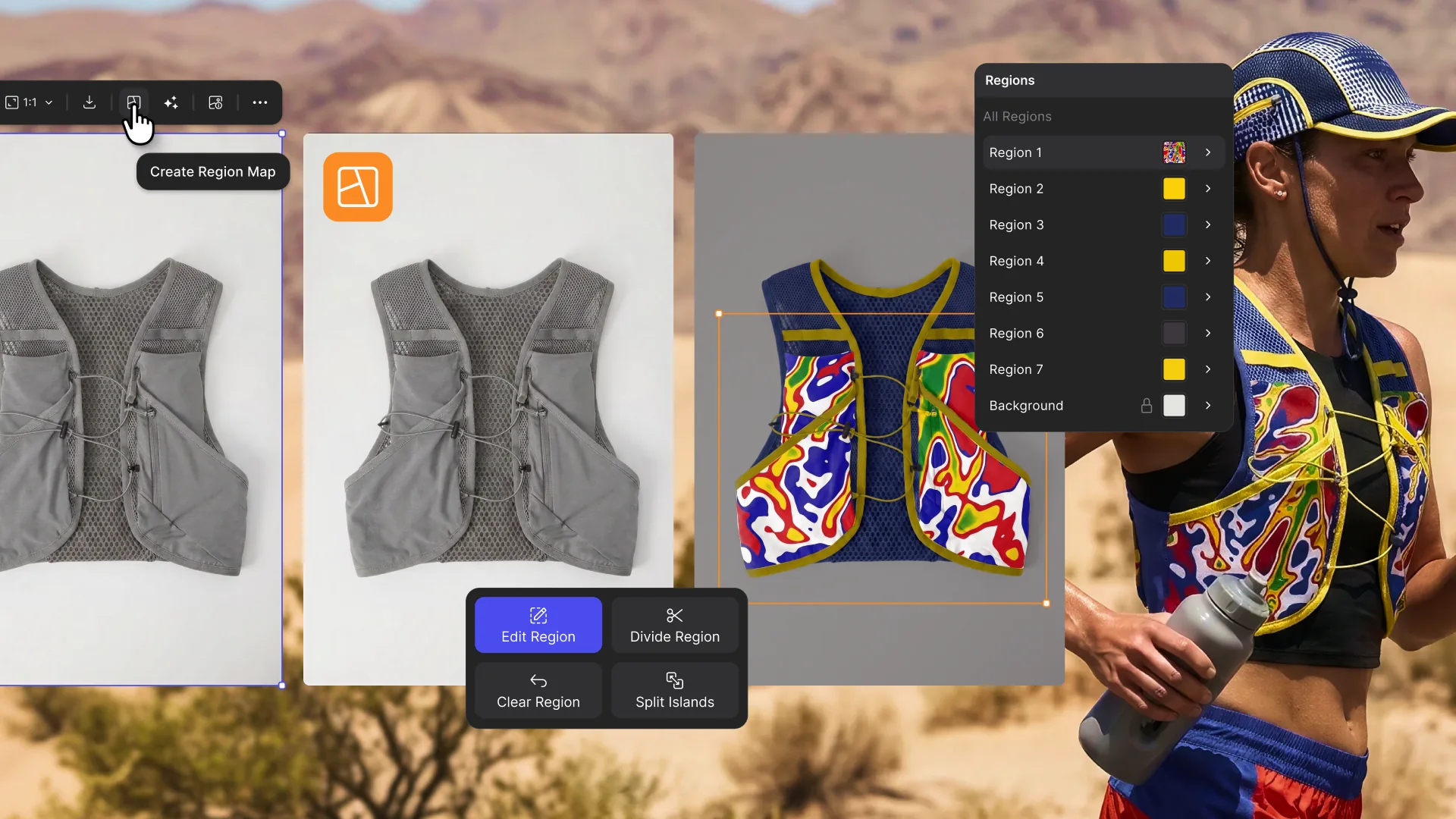
Explore color and material variations part-by-part without leaving Vizcom.

Frequently asked questions
Yes of course! Our starter plan is completely free, no credit card required. This is a great plan to explore vizcom with.
We accept all major credit and debit cards.
Admins (paid) – can edit files, manage workspace settings, billing, teams, and invite members. Editors (paid) – can edit files but not manage settings, billing, or teams. Viewers (free) – can only view files in read-only mode.
Team billing is handled centrally by the Admin. All paid seats, whether Admins or Editors, are included in a single invoice under the same billing cycle, while Viewers remain free and do not affect the cost.
Yes, you can. An Admin can update the plan in the billing settings, and the switch will take effect on the next billing cycle at the annual rate.
Yes, you own everything you create in Vizcom. For free users, while Vizcom may use generated images to improve its services, it does not claim ownership of your designs, concepts, or original ideas—you keep full rights to them. For paid users, your images and designs remain entirely private and are only used to deliver the service. Every design, concept, and image you create or upload is fully yours and kept confidential.
Vizcom does not use your data to train AI models if you’re on a paid plan. Everything you create stays private and is only used to provide the service. Free users may have their generated images included to help improve Vizcom’s services, but even then, Vizcom does not claim ownership of your designs, concepts, or original ideas—you retain full rights.